 Yoosee App Docs
Yoosee Smart Camera (V2.5)
Quick start guide for the Yoosee Smart Camera, covering app download, power on, adding the device, sharing, monitoring, playback, troubleshooting and notices.
Before using this product, please read this manual carefully and keep it for future reference.
Quick Start Guide
1. Download the App
You can either scan the QR code or search "Yoosee" in the App Store or Google Play, then register to login.

Need help with first-time setup? See the setup guide or the step-by-step WiFi pairing tutorial.
2. Power on the device
Power on the device and the device will give out " Du du" sound in around 30s. If the "Du du" sound can not be heard, please Insert the thimble into the "reset" hole and long press it until the device emits the voice tone.
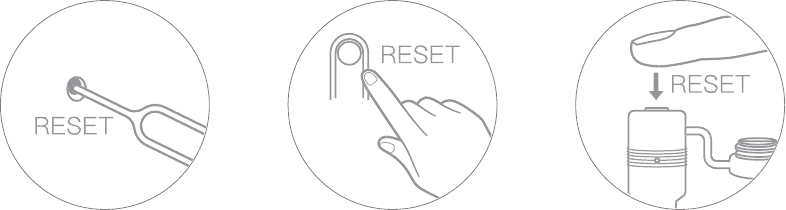
3. Add the device
Connect the phone to WiFi (If the device do not supports 5GHz WiFi, please make sure the connected WiFi is 2.4GHz).
Go to 'Device' in Yoosee app, click '+', Then add the camera according to the prompt.
The App interface may be upgraded occasionally to improve user experience.
Device sharing
Invite your friends to download and install Yoosee App, and register to log in.
The device owner can click the 'share' icon to choose either way to share.
You can follow the App instruction to complete the share.
monitoring
On the monitoring interface of the YooSee app, you can check the camera monitoring images in real time and control camera monitoring, interception and recording functions.
playback
After you install a TF card (support fat32/exFat), the camera will automatically record videos when the camera is on working condition. You can check the recorded videos in the "local playback" function of the Yoosee app.
Trouble Shooting
Q: The camera can not connect with WiFi?
A: Please double check whether the WiFi password is correct. Please confirm whether the device supports 5GHz WiFi, otherwise, please make sure the connected WiFi is 2.4GHz; The router can not have WiFi restrictions such as enabling AP isolation, preventing Wi-Fi squatting etc. Some phones need to get mobile phone GPS permission and turn on GPS to get a WiFi list.
Q: Device is offline in device list?
A: Check whether the device network is good or not. If there is TF card inserted, please unplug the TF card, reset the device and router. Check whether the device is online or not. If the problem still exists, please reset the device (Insert the thimble into the "reset" hole and long press for 5s to 10s). Please re-add the device. After that, check the device firmware and App version and upgrade them to the latest version.
Q: How to do if the device is offline after changing a router or WiFi password?
A: The device keeps the original password. If password is changed and can not match with the original password, the device is not able to be online then. Under this situation, please reset the device (Insert the thimble into the "reset" hole and long press for 5s to 10s) and re-add according to the App tips.
Q: The playback video can not be watched?
A: Unplug the TF card and re-insert. Please check whether the record mode is open. If the record mode is open but no video is made, please go to "Settings", enter "Record settings", disable "Record switch", and format the TF card. If the video can not be watched still after formatting TF card, please replace a new TF card to try.
For more questions, please refer to "Help and feedback" in Yoosee App.
Note
Please confirm whether the device supports 5GHz WiFi, otherwise, make sure that the WiFi connected to the mobile phone is 2.4GHz;
The device supports 128G card storage at maximum and the TF card should be formatted with FAT32/exFat format.
The device uses loop record technique, when TF card is full, the camera will cover the earliest files automatically to save new videos.
Please do not install the product in a harsh environment. The product may be damaged if exposed to high temperatures, high humidity, dust and smoke etc.
The Yoosee App and the device firmware will be updated occasionally. Please update when the software notifies you that an update is available.
The device will be automatically bound with the Yoosee account after connecting to network. Before binding a new Yoosee account, please unbind the device with the first Yoosee account.
Yoosee CMS is available in windows PC for camera surveillance. Please go to http://www.yoosee.co and download to install.
Customer Service
For users who need technical support, please contact: [email protected]
Yoosee Quick Start Guide
Yoosee Smart Camera Quick Operation Guide (V1.8) covering app installation, account login, adding and pairing a camera, sharing, and CMS login.
Network Intelligent PTZ Camera
User manual for the Yoosee Network Intelligent PTZ Camera, covering the packing list, product structure, app download, account registration, four ways to add the camera, function introduction, FAQ, and notices.